
We understand that sometimes internet connectivity can be a challenge for students. That’s why we want to highlight the incredible benefits of using Canvas apps, even when they’re offline. In this guide, we’ll share the importance of offline functionality and provide step-by-step instructions to help you implement it. Let’s dive in!
Canvas App: A Quick Refresher
It’s easy to overlook the different ways students connect with your course, especially with so many tools available these days. Have you ever asked your students about how they actually access your course materials? Do your students know they can use the Canvas app to view important course content even when they’re offline?
If you haven’t explored this feature yourself, you might be surprised by just how useful it can be. Let’s take a closer look at what “Offline Mode” in the Canvas app really offers, and why it might make a real difference for your students.
Canvas Offline Mode
The Canvas App has a handy offline mode that lets students access important course materials even without internet connection. This is especially helpful for those with spotty Wi-Fi, allowing them to study anytime, anywhere. Although some interactive features aren’t available offline, students can still review essential content and enhance their learning experience. The following is a summary of features:
Supported features in the latest release (scroll down to “Mobile”):
- Announcements (note that the Reply feature is disabled)
- Assignment (includes Assignment list, Assignment details, but no active Submission)
- Discussions (Reply is disabled)
- Files
- Grades (list, details, no active Submit / Resubmit assignment)
- Modules
- Pages
- People
- Syllabus
- Quizzes (includes quiz list, quiz details, but no active Take Quiz)
Not sure where to begin with Canvas Offline mode? We’ve got the guide for you!
The Quick 5 Steps Guide
Step 1: Open the Canvas App
When you first open the Canvas app, you’ll land on your Dashboard, where you can see all your courses. Click on the three dots of the course you want to enable the Offline mode and select “Manage Offline Content.”

Step 2: Sync Your Course
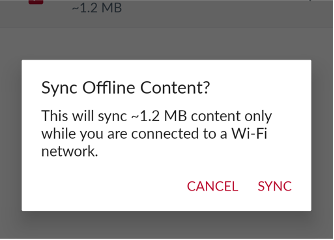
Sync the entire course or select the items that you want to sync by tapping the red sync button.


Note: The sync requires a Wi-Fi connection.
Step 3: Monitor Sync Progress
While syncing, Canvas displays a progress bar so you can keep using the app while it downloads content.

Step 4: Confirm Synced Courses
Courses that have been successfully synced will display a small arrow icon next to their name. When your device is no longer connected to the internet, only the courses you’ve synced will be accessible.


Step 5: Explore Synced Content (With Some )
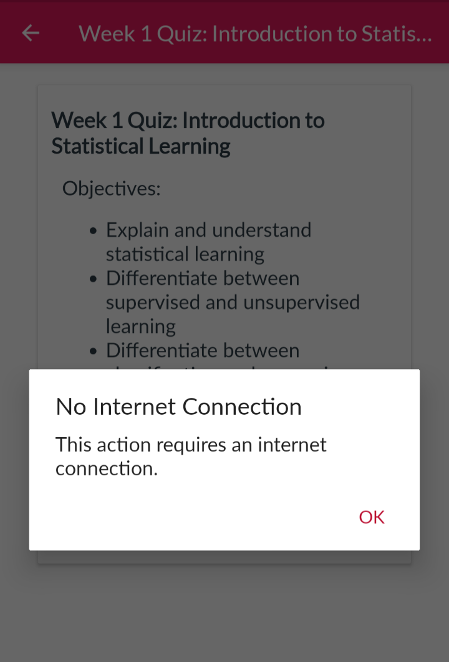
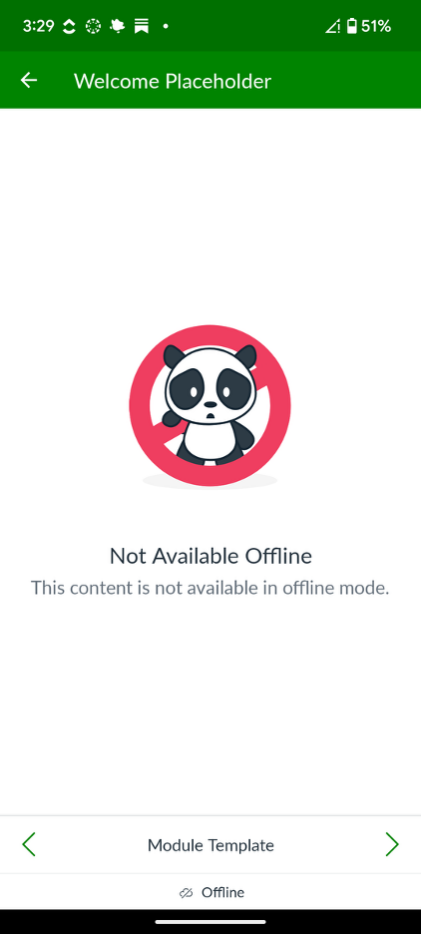
You can now view course content like pages, modules, and files. However, you won’t be able to complete tasks that require interaction with Canvas servers or access third-party apps.
While you’re offline, here is an example of those limitations:
- Submitting assignments
- Taking quizzes
- Replying to discussions
- Watching Panopto videos
- Access Ball State First Day
Note: Offline access is view-only. Make sure to reconnect when you’re ready to submit work or interact with your instructor.

In Conclusion: Staying Connected, No Matter What
Understanding how the offline feature in Canvas works can help you support students who may not always have reliable internet access. We’d love for you to share this information with your students so they can get ready in advance, sync their courses, and keep their learning on track even when they’re not connected. A little bit of planning can make a big difference in staying connected to course materials.
Keep in mind: If your course includes Panopto videos in the lectures, these videos won’t be available for offline viewing directly in Canvas. However, you can still access them offline by downloading them using the Panopto App.
References
Instructure. (2024, June 25). Instructure launches offline feature for Canvas Student app, furthering equitable access to learning [Press release]. https://www.instructure.com/press-release/instructure-launches-offline-feature-canvas-student-app-furthering-equitable-access






Comments:
When you enabled sync on a course, is that a one-time snapshot, or does it then continuously resync in the future, as changes are made to the Canvas course?
Hi, that is a great question. Once the Canvas app detects a Wi-Fi connection, it automatically checks for pending updates and synchronizes them. You will see a notification on your device confirming that the specific course is syncing.
I had no idea this feature existed. It seems like a lifesaver for commuters, but that restriction on Panopto videos is a bit of a pain.