

This article reviews common student accommodations (quiz times, attempts, and assignment due dates) and how to implement them in Canvas.
Ball State students with disabilities can access resources and request accommodations from physical aids like the University’s shuttle service to in-class services such as note-taking. While there are a variety of accommodations for students, common aids include extending quiz time and assignment due dates on Canvas. To simplify the process for instructors, this article explains how to implement extended quiz times and due dates on Canvas.
Adding Additional Quiz Time or Attempts
Classic Quizzes
A common accommodation is extra time or attempts on tests. To assign extra time/attempts to students in Canvas, navigate first to the quiz that needs adjustment. Next, select Moderate This Quiz.

Then, select the box to the left of the student’s name who needs the accommodation—this will ensure your changes are applied to this student. You will then click the pencil icon to the far right of the student’s name, which will open a dialog box. In this box, you will fill out the amount of extra time and/or the number of extra attempts the student receives.
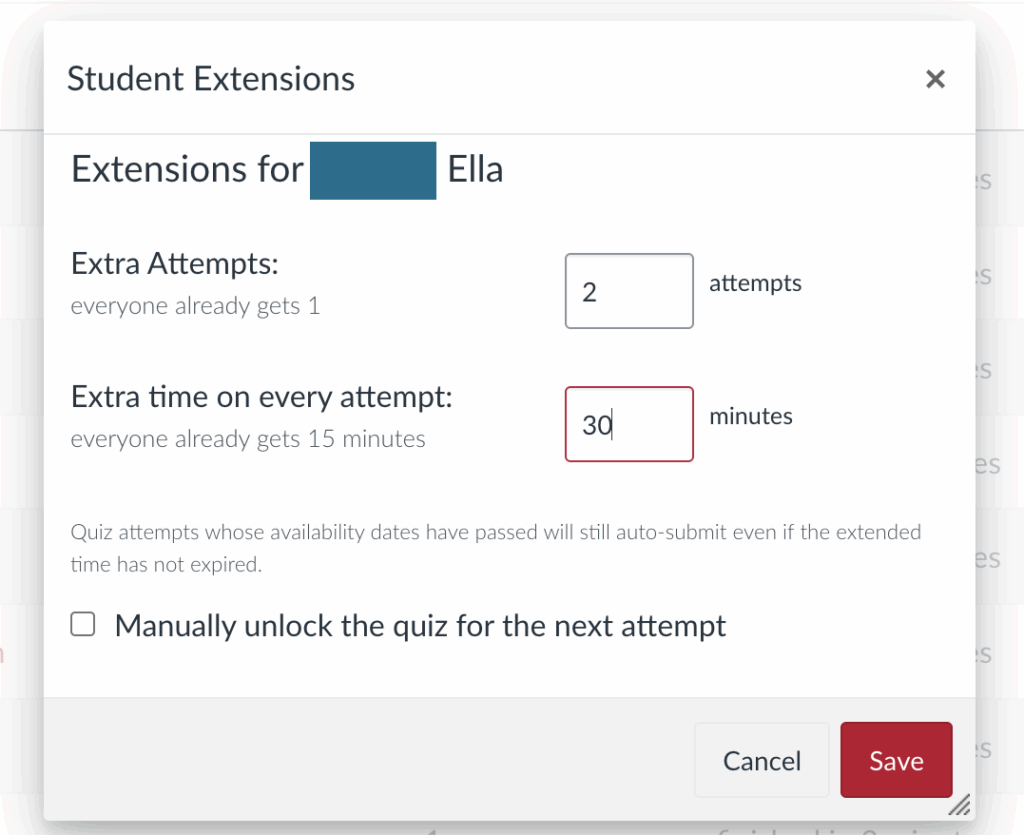
Lastly, click Save to apply your changes.
New Quizzes
Note: This approach allows you to add accommodations for multiple students at once!
If you are using New Quizzes in Canvas, inputting extra time or attempts to students’ quizzes will look different. First, navigate to the quiz your student(s) will need more time or attempts on. Next, select Build.
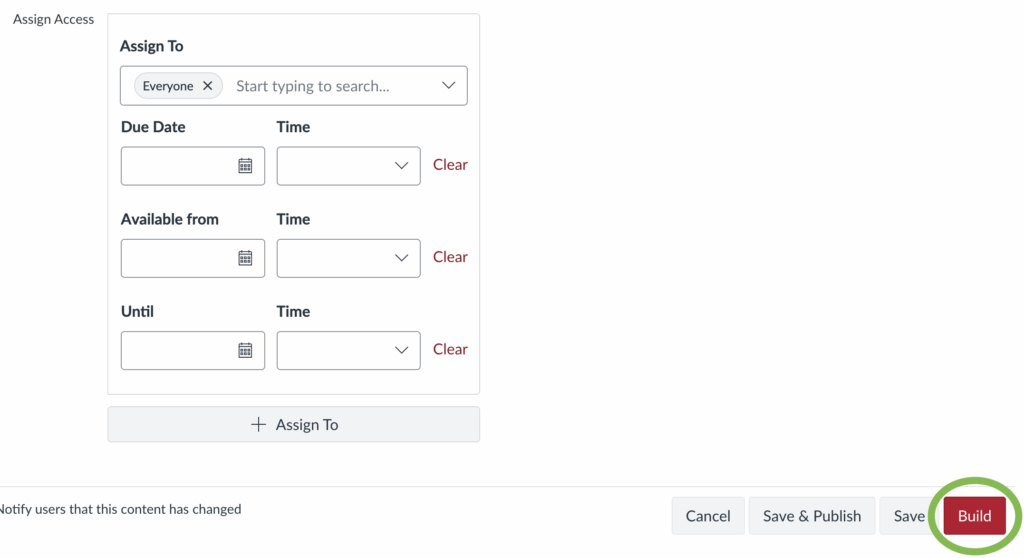
Once in Build, select the Moderate tab at the top of the screen. This will take you to a page with a list of your students and their quiz information. The last category on this page, Accommodations, is where you will enter your student’s (or students’) accommodations.

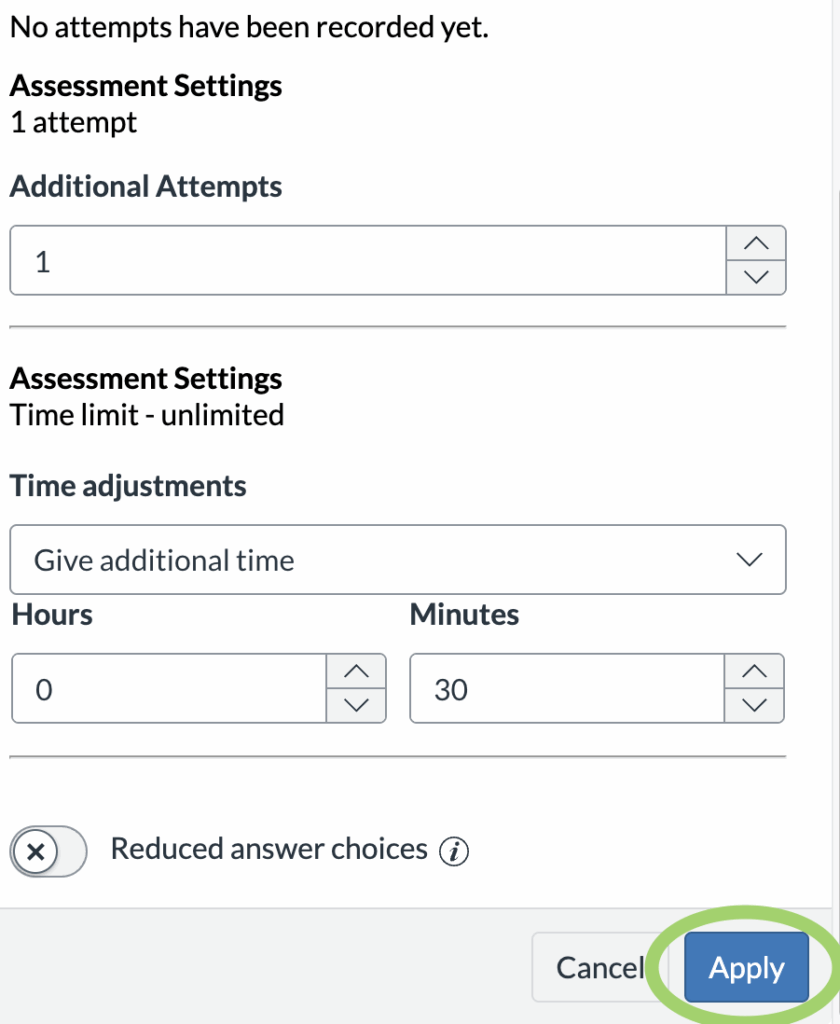
To enter a student’s accommodation, select the pencil icon to the right of the Accommodations category. A dialog box will then appear, allowing you to adjust the student’s quiz attempts and time settings. Once you enter this information, select Apply to save your changes.
Assigning Different Due Dates
Instructors can manage different due dates for students with assignment extensions. For students with extended deadlines, assigning them their correct date is an easy way to remind them (and you) of their adjusted deadline.
To assign separate due dates for quizzes, assignments, and discussion boards, you will need to first navigate to the assignment and select Edit. Next, scroll to the bottom of the editor options and locate the Assign Access section. Click the + Assign To option to assign a separate due date to your student.

In this new assignment box, select the name of your student and adjust the Due Date, Available From date, and Available Until date to accommodate your student’s needs.
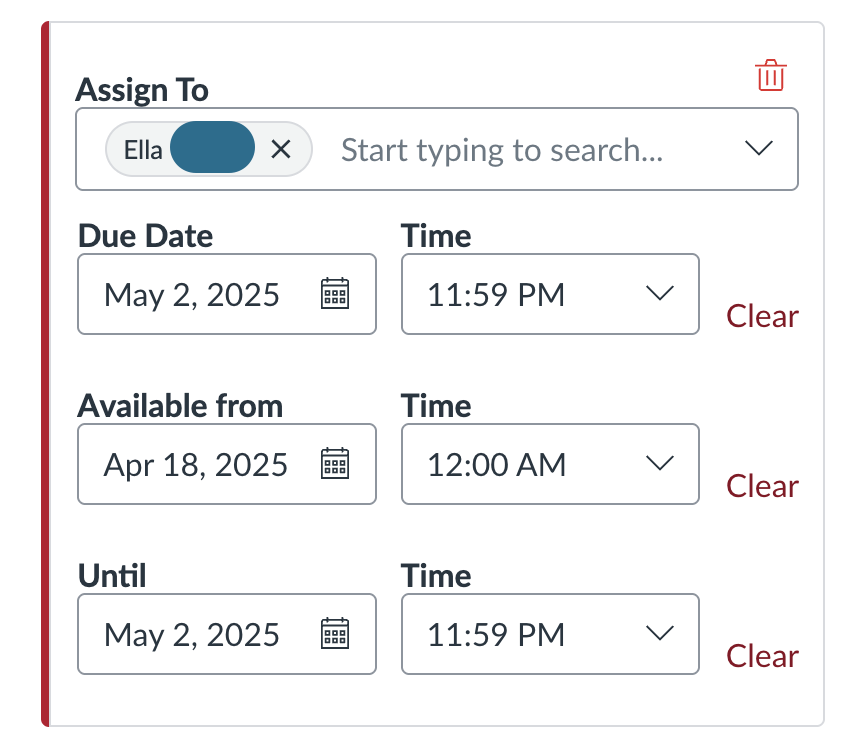
Lastly, click Save to apply your changes.
Conclusion
Extending due dates and adding additional quiz times/attempts are common student accommodations. This blog reviewed how to implement each accommodation, providing instructors with a quick guide to adjusting their Canvas course to meet students’ needs.
Need to add a student’s Canvas accommodation that wasn’t listed in this article? Reach out to strategiclrn@bsu.edu for further assistance.






Comments: